
Google Drive is one of the most useful free cloud storage services for students, professionals, small business owners, and everyday internet users. It allows you to store files online, organize documents, share files with other people, and access your information from different devices.
If you are new to Google Drive, you may be wondering how to upload files, create folders, share documents, and keep everything organized. The good news is that Google Drive is relatively simple once you understand the basic features.
In this beginner-friendly guide, you will learn how to use Google Drive, how to upload and organize files, how to share documents, how Google Drive works with Google Docs and Sheets, and how to use Google Drive more efficiently.
What Is Google Drive?
Google Drive is a cloud storage service that lets you save files online instead of keeping everything only on your computer or phone.
You can store different types of files, including:
- Documents
- Photos
- Videos
- PDFs
- Spreadsheets
- Presentations
- ZIP files
- School assignments
- Work documents
Because your files are stored online, you can access them from supported devices as long as you are signed in to the same Google Account.
Google Drive is especially useful when you want to access an important file without carrying a USB drive or sending the file to yourself by email.
Why Should Beginners Use Google Drive?
There are several reasons why Google Drive is useful for beginners.
1. Access Your Files Online
One of the biggest advantages of Google Drive is that your files are stored in the cloud. This means you can access them from different devices when you are signed in to your Google Account.
For example, you could upload a school assignment from your computer and later open it from your phone.
2. Organize Your Files
Google Drive allows you to create folders and subfolders. This makes it easier to keep personal, school, work, and other files separated.
Instead of having hundreds of files in one location, you can create a simple folder structure.
3. Share Files Easily
You can share a file or folder with another person instead of sending a large attachment through email.
You can also control what other people are allowed to do with the shared file.
4. Work With Google Docs, Sheets, and Slides
Google Drive works closely with Google’s productivity tools, including Google Docs, Google Sheets, and Google Slides.
This makes it possible to create documents, spreadsheets, and presentations and keep them organized in your Drive.
How to Use Google Drive for Beginners
Now let’s go through the basic Google Drive features step by step.
Step 1: Sign In to Your Google Account
To start using Google Drive, you need a Google Account.
If you already use services such as Gmail or other Google services, you may already have a Google Account.
Open Google Drive and sign in with your Google Account.
Once you are signed in, you will see the main Google Drive interface.
The exact appearance of Google Drive may change over time as Google updates its interface, but the main concepts remain similar.
Step 2: Understand the Google Drive Interface
When you first open Google Drive, you will see several important areas.
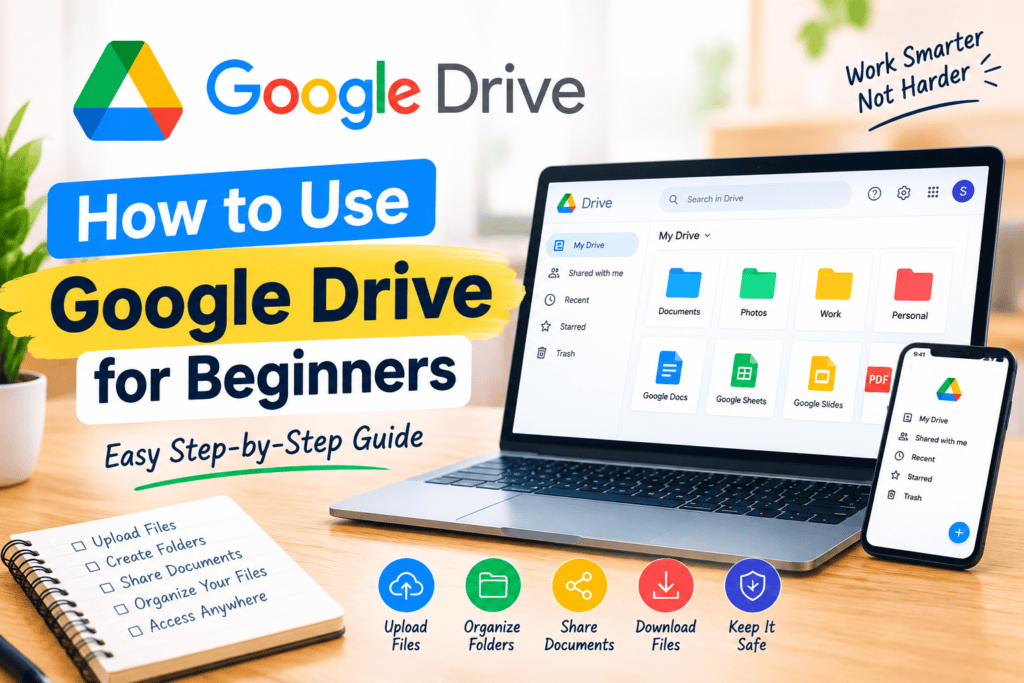
The left side normally contains navigation options such as:
- My Drive
- Shared with me
- Recent
- Starred
- Trash
You may also see storage information and other options depending on your account and current Google Drive interface.
My Drive
My Drive is where you can organize your files and folders.
Shared with me
This area contains files and folders that other people have shared with your Google Account.
Recent
The Recent section helps you find files that you recently opened or worked with.
Starred
You can mark important files or folders as starred so they are easier to find later.
Trash
Deleted files are moved to the Trash before they are permanently removed according to Google’s current retention rules.
Step 3: Create a Folder in Google Drive
One of the first things beginners should learn is how to create folders.
Folders make your Google Drive easier to manage.
To create a folder:
- Open Google Drive.
- Click the New button.
- Choose New folder.
- Enter a name for the folder.
- Click Create.
For example, you could create folders such as:
- School
- Work
- Personal
- Photos
- Documents
- Projects
- Business
You can also create folders inside other folders to build a more organized system.
Example Folder Structure
A student might organize Google Drive like this:
School
→ English
→ Mathematics
→ Science
→ Assignments
→ Projects
This simple structure can make it much easier to find files later.
Step 4: Upload Files to Google Drive
Uploading files is another important Google Drive feature.
To upload a file:
- Open Google Drive.
- Click New.
- Select File upload.
- Choose a file from your computer.
- Wait for the upload to finish.
You can upload many common file types, including documents, images, PDFs, videos, and other files.
Upload Files Into a Specific Folder
If you want a file to go directly into a particular folder, open that folder first and then upload the file.
This can save you time because you do not need to move the file later.
Step 5: Upload an Entire Folder
Google Drive can also allow you to upload a folder from your computer through supported web interfaces.
This can be useful when you have many related files.
For example, if you have a folder called:
Website Project
that contains:
- Images
- Articles
- Documents
- Research
you may be able to upload the entire folder instead of selecting every file individually.
Step 6: Create a Google Doc
Google Drive is not only for storing files. You can also create documents directly from Drive.
To create a document:
- Open Google Drive.
- Click New.
- Select Google Docs.
- Start writing.
Google Docs is useful for:
- Blog posts
- School assignments
- Notes
- Reports
- Business documents
- Lists
- Drafts
Your document can be stored in Google Drive, making it easier to find later.
Step 7: Create a Google Sheet
Google Sheets is Google’s spreadsheet tool.
You can use it to create tables, track information, calculate numbers, and organize data.
For example, you could create a spreadsheet for:
- Monthly expenses
- Blog content planning
- Business leads
- Product lists
- School projects
- Website statistics
To create one, select:
New → Google Sheets
You can then enter information into rows and columns.
Step 8: Create a Google Slides Presentation
Google Slides allows you to create presentations.
It can be useful for:
- School presentations
- Business presentations
- Project presentations
- Training material
- Simple visual reports
To create a presentation, choose:
New → Google Slides
You can then add text, images, shapes, and other presentation elements.
Step 9: Rename Files in Google Drive
Good file names can make your Drive much easier to manage.
For example, instead of naming a file:
Document1
you could use:
Technology-Blog-Research-September-2026
To rename a file:
- Find the file.
- Open its context menu or right-click it.
- Select the rename option.
- Enter the new name.
- Save the change.
Try to use clear and descriptive file names.
Step 10: Move Files Into Folders
If your Drive is becoming messy, you can move files into appropriate folders.
For example:
Blog Article.docx
could be moved into:
Work → Blog Articles
This helps keep related documents together.
A simple folder system can save a lot of time when your number of files increases.
Step 11: Share a File With Someone
One of Google Drive’s most useful features is file sharing.
You can share a file with another person without sending the entire file as an email attachment.
To share a file:
- Find the file.
- Open the sharing option.
- Enter the person’s email address.
- Select the appropriate permission.
- Send the invitation.
Depending on the file and sharing settings, you may be able to give someone permission to view, comment, or edit.
Understanding Google Drive Sharing Permissions
Before sharing a file, it is important to understand permissions.
Viewer
A viewer can generally open and read the file but cannot make normal edits to its contents.
Commenter
A commenter can add comments where supported but does not have the same editing permissions as an editor.
Editor
An editor can make changes to the file.
For important documents, always check the permission level before sharing.
If you only want someone to read a document, giving them editing access may not be necessary.
Step 12: Share a Google Drive Link
Another convenient option is sharing a link.
Depending on your settings, you can adjust who has access to the file and then copy the sharing link.
Before sending the link to someone, check the access settings carefully.
For private documents, avoid changing sharing settings unnecessarily.
Step 13: How to Download Files From Google Drive
You may sometimes want to save a Drive file directly to your device.
To download a file:
- Find the file.
- Open its context menu.
- Select Download.
- Wait for the download to complete.
The exact download behavior may depend on the file type and device you are using.
Downloading can be useful when you need an offline copy.
Step 14: How to Find Files in Google Drive
If you have hundreds of files, scrolling through folders may become difficult.
Google Drive includes search functionality that can help you locate files.
You can search using a file name or other available search filters.
For example, if you are looking for a PDF about technology, you can search for relevant words and then narrow the results.
Search Tips
Use specific words instead of very broad searches.
Instead of:
document
try:
technology report
Instead of:
image
try:
website logo
Clear file names also make searching much easier.
Step 15: Use Starred Files
If you regularly use a particular file, you can mark it as starred.
For example, you might star:
- Your current project
- Important school documents
- A business spreadsheet
- A frequently used report
- A content calendar
This provides a quick way to locate important files.
Step 16: Use the Recent Section
The Recent section can be useful when you remember working on a file recently but cannot remember where you stored it.
Instead of opening multiple folders, check your recent files.
This is especially helpful when you work with many documents every day.
Step 17: Delete Unnecessary Files
Over time, your Google Drive can become filled with duplicate or unnecessary files.
Regularly review your Drive and remove files you no longer need.
However, be careful when deleting important documents.
Before deleting something, make sure you have another copy if the file is important.
Step 18: Understand Google Drive Storage
Google Drive storage is associated with your Google Account and can be shared across certain Google services.
The amount of storage available depends on your account and current Google storage plan.
If you regularly upload large videos, images, or other large files, your storage can fill up faster.
You can review your storage usage through your Google Account or Google Drive.
Step 19: Use Google Drive on Your Phone
Google Drive can also be used on mobile devices through Google’s Drive app.
Using Drive on your phone can be useful when you need to:
- View documents
- Find files
- Share files
- Upload photos
- Access important information
- Organize folders
The mobile interface is different from the desktop version, but the basic concepts are similar.
Step 20: Keep Your Google Drive Organized
Organization becomes increasingly important as your number of files grows.
Here is a simple system you can use:
Main Folder
My Projects
Inside it:
2026
Inside that:
January
February
March
Or you can organize by category:
Work
School
Personal
Business
Photos
Choose a structure that matches how you actually work.
Google Drive Tips for Beginners
Here are some simple tips that can make Google Drive easier to use.
Use Clear File Names
A descriptive name makes files easier to identify.
For example:
SEO-Keyword-Research-September-2026
is easier to understand than:
File123
Create Folders Before Uploading Lots of Files
If you already know how you want your files organized, create folders first.
This prevents your Drive from becoming cluttered.
Check Sharing Permissions
Before sharing a private or important document, verify who can access it and what they can do.
Keep Important Files Organized
Do not allow important files to remain scattered across random folders.
Review Storage Regularly
Large videos and unnecessary files can consume storage quickly.
Review your Drive occasionally and remove files you no longer need.
Common Google Drive Problems for Beginners
Even though Google Drive is simple to use, beginners may sometimes encounter problems.
Google Drive Is Not Uploading a File
Possible reasons include:
- Weak internet connection
- Large file size
- Browser issues
- Storage limitations
- Temporary service problems
Try checking your internet connection and available storage first.
I Cannot Find My File
Try these options:
- Check Recent.
- Search by file name.
- Check My Drive.
- Check Shared with me.
- Check Trash.
- Review your folders.
Someone Cannot Open My File
Check the file’s sharing permissions.
The person may not have the required access, or the file may be restricted to specific accounts.
Google Drive Storage Is Full
If your storage is nearly full, review large files and unnecessary data.
You can also review the storage options available for your Google Account.
Google Drive vs. Saving Files Only on Your Computer
Saving files only on your computer means you may have difficulty accessing them from another device.
Google Drive provides cloud-based access and makes file sharing easier.
However, cloud storage should not be treated as a reason to ignore backups of extremely important files.
For important personal or business information, keeping an additional backup can be a sensible precaution.
Is Google Drive Good for Students?
Yes, Google Drive can be useful for students because it can help organize assignments, notes, presentations, and other school documents.
A student could create folders such as:
School 2026
→ English
→ Mathematics
→ Science
→ Assignments
→ Presentations
This simple organization can make it easier to find schoolwork.
Is Google Drive Useful for Small Businesses?
Google Drive can also be useful for small businesses and freelancers.
For example, a business could organize folders for:
- Clients
- Invoices
- Marketing
- Products
- Reports
- Content
- Business Documents
When combined with Google Docs and Google Sheets, Drive can become part of a simple online productivity system.
How to Use Google Drive Safely
Keeping your account secure is important because Google Drive may contain personal, school, or business information.
Consider these basic security practices:
Use a Strong Password
Use a strong and unique password for your Google Account.
Turn On Two-Step Verification
Two-step verification can add another layer of protection to your account.
Be Careful With Shared Links
Do not make sensitive documents publicly accessible unless there is a specific reason to do so.
Review Account Activity
If you notice something unusual with your account, review your account security settings and take appropriate action.
Google Drive Keyboard and Productivity Habits
As you become more comfortable with Google Drive, you can improve your workflow by using keyboard shortcuts and consistent file organization.
For example, develop a naming system for important documents.
A simple format could be:
Project – Topic – Date
Example:
Website – SEO Report – September 2026
This makes files easier to identify and search later.
Frequently Asked Questions About Google Drive
Is Google Drive free for beginners?
Google provides a free Google Account with a certain amount of cloud storage. Additional storage may be available through paid Google storage plans.
Can I use Google Drive on my phone?
Yes. Google Drive can be accessed on supported mobile devices through Google’s Drive app.
Can I share Google Drive files with other people?
Yes. You can share individual files and folders and choose appropriate access permissions.
Can I edit documents in Google Drive?
Yes. Google Drive works with Google Docs, Google Sheets, and Google Slides, allowing you to create and edit different types of documents.
Can I use Google Drive offline?
Some Google services and files can be configured for offline use, depending on the device, browser, file type, and settings.
How do I organize Google Drive?
The easiest method is to create folders based on categories such as work, school, personal projects, business, or other areas of your life.
Is Google Drive safe?
Google provides security features for Google Accounts and its services, but users should still use strong passwords, enable additional security protections, and carefully manage file-sharing permissions.
Final Thoughts
Learning how to use Google Drive for beginners does not have to be difficult. Once you understand folders, file uploads, sharing permissions, search, downloads, and basic organization, you can use Google Drive much more efficiently.
Start with a simple folder structure, give your files clear names, and regularly review your storage. If you work with documents, spreadsheets, or presentations, combining Google Drive with Google Docs, Sheets, and Slides can make your daily workflow easier.
Whether you are a student, blogger, freelancer, employee, or small business owner, learning the basics of Google Drive is a useful digital skill that can help you manage your files more efficiently.
Start small, stay organized, and build your Google Drive system as your number of files grows.