

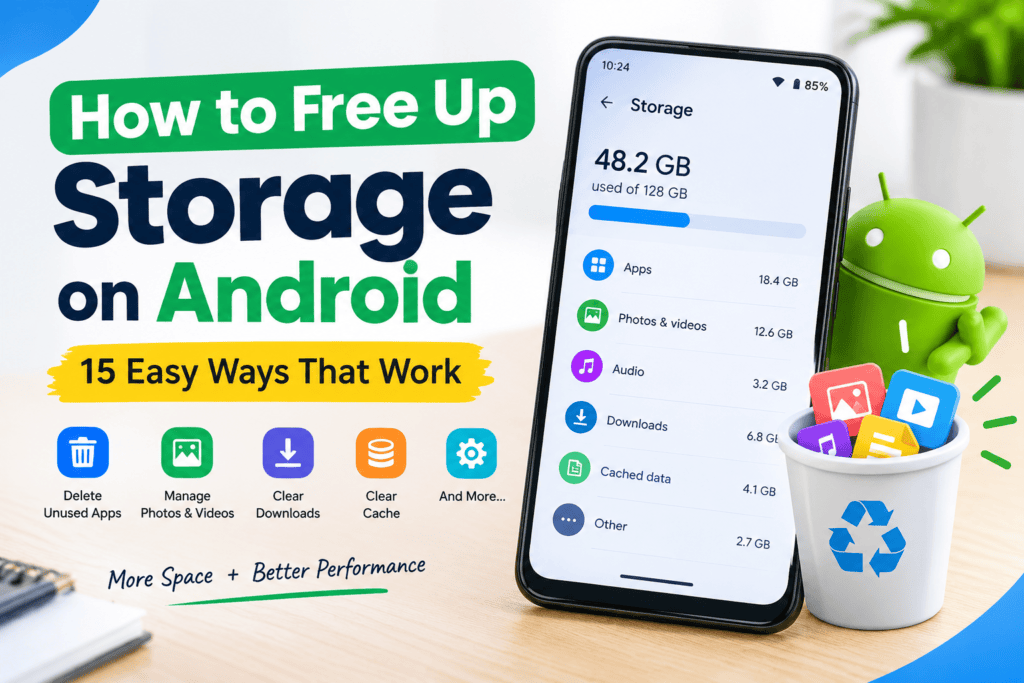
Running out of storage on an Android phone can be frustrating. You may see messages saying that your storage is almost full, apps may stop updating, and your phone can become harder to manage.
The good news is that you usually do not need to delete important photos, apps, or files immediately. Android phones include several built-in options that can help you find what is using your storage and safely remove unnecessary data.
In this guide, we will explain how to free up storage on Android phones using simple methods that most users can follow.
Why Does Android Phone Storage Get Full?
Your phone storage can fill up for several reasons. Photos and videos are often among the largest files, but apps, downloaded files, cached data, screenshots, and offline content can also take up significant space.
Common causes include:
- Large photos and videos
- Downloaded movies or music
- WhatsApp and other messaging media
- Unused applications
- Duplicate files
- Screenshots and screen recordings
- Browser and app cache
- Downloaded documents
- Offline maps and other content
Before deleting anything, it is a good idea to check which categories are actually consuming the most storage.
1. Check What Is Using Your Android Storage
The first step is to understand where your storage is going.
On many Android phones, you can open:
Settings → Storage
The exact menu names can vary depending on your phone manufacturer and Android version.
You may see categories such as apps, images, videos, audio, documents, and system files.
Look at the largest categories first. This helps you avoid deleting small files while leaving the biggest storage problems untouched.
Why This Step Matters
If videos are using most of your storage, deleting a few small documents will not make much difference. Checking storage usage first lets you focus on the files that can actually free significant space.
2. Delete Unnecessary Photos and Videos
Photos and videos can gradually consume a large amount of storage, especially if you frequently record high-resolution videos.
Open your gallery or photo app and look for:
- Old screenshots
- Duplicate photos
- Blurry pictures
- Unwanted screen recordings
- Large videos
- Accidentally saved images
- Videos you no longer need
Review these files carefully before deleting them.
Tip: Check Large Videos First
A few large videos can take more space than hundreds of ordinary photos. If your phone is almost full, checking videos can be a quick way to identify files that are consuming substantial storage.
3. Remove Unused Android Apps
Another useful way to free up phone storage is to remove applications you no longer use.
Think about apps that you downloaded for a specific purpose but have not opened for months.
You can usually uninstall an app by:
- Opening your app list.
- Pressing and holding the app.
- Selecting the uninstall option.
You can also manage installed apps through your phone’s Settings.
Do Not Delete Apps You Need
Before uninstalling an application, make sure you know what it does. Avoid removing system applications or apps that are necessary for important phone functions.
4. Clear App Cache When Appropriate
Apps can store temporary files called cache. Cached data can sometimes become quite large.
Depending on your Android version and phone manufacturer, you may find cache controls under:
Settings → Apps → Select an App → Storage
If an option to clear cache is available, it can remove temporary data.
However, do not confuse Clear cache with Clear storage/data.
Clearing storage or app data can remove locally stored information and may sign you out of the app. Always check what the option does before using it.
5. Clean Your Downloads Folder
The Downloads folder is easy to forget.
Over time, it may contain:
- Old PDFs
- Images
- ZIP files
- Installation files
- Documents
- Videos
- Other files downloaded from websites
Open your phone’s file manager and check the Downloads folder.
Delete files that you no longer need.
If you are unsure about a file, keep it until you know what it is.
6. Check Messaging Apps for Large Media Files
Messaging apps can create a large amount of storage usage because photos, videos, documents, and voice messages may accumulate over time.
Check the storage management section of your messaging apps to identify large files and media.
Instead of deleting entire conversations, you may be able to remove only unnecessary media.
This approach can help you free up storage while keeping important conversations.
7. Remove Old Screen Recordings and Screenshots
Screenshots and screen recordings are another category worth checking.
You may have screenshots that were useful temporarily but are no longer needed.
For example, you might have saved:
- Shopping screenshots
- Temporary notes
- Old conversations
- Website information
- Receipts that you no longer need
- Duplicate screenshots
Review them and remove unnecessary files.
8. Use Android’s Built-In Storage Recommendations
Many Android phones provide built-in storage management tools.
Depending on your device, you may find recommendations for:
- Removing unused apps
- Deleting large files
- Removing duplicate files
- Clearing unnecessary files
- Managing downloaded content
These tools can be useful because they help identify files that may no longer be necessary.
Always review suggested files before confirming deletion.
9. Move Important Photos and Videos
If you have many important photos and videos, deleting everything is not the only solution.
You can consider moving your files to another storage location, such as:
- A computer
- An external storage device
- A supported cloud storage service
After confirming that your important files have been safely copied, you can remove the original copies from your phone if you need additional space.
Always Verify Your Backup
Do not assume that a file is safely backed up just because an upload started.
Open your backup location and confirm that important photos, videos, or documents are actually available before deleting the originals from your phone.
10. Delete Duplicate Files
Duplicate files can quietly consume storage.
You might have multiple copies of:
- Photos
- Videos
- Documents
- Downloaded files
- Screenshots
Some Android file-management apps provide tools that help identify duplicate or unnecessary files.
Review duplicates carefully before deleting them because two files with similar names are not always identical.
11. Remove Offline Downloads
Streaming and navigation apps can allow users to save content for offline use.
Check whether you have old:
- Offline videos
- Downloaded music
- Offline maps
- Podcasts
- Other downloaded content
If you no longer need the offline versions, removing them can recover storage without uninstalling the app.
12. Be Careful With “Cleaner” Apps
You may see many apps claiming to clean your Android phone and make it faster.
Be cautious when installing unfamiliar cleaning applications.
Android already provides built-in storage management features, and unnecessary third-party apps can themselves consume storage or request permissions you may not want to grant.
Before installing any cleaner, check who developed it, what permissions it requests, and whether you actually need it.
13. Restart Your Phone After Cleaning
After removing a large amount of unnecessary data, restarting your phone can be a simple maintenance step.
It does not magically create storage, but it can help your device complete normal housekeeping processes after you’ve made changes.
The important part is the actual cleanup, not the restart itself.
14. Keep Some Free Storage Available
It is better not to wait until your Android phone reaches completely full storage.
Keeping some free space available gives your phone room for temporary files, app updates, photos, videos, and other normal operations.
You can make storage maintenance easier by checking your storage every few weeks.
A quick monthly cleanup can prevent storage problems from becoming serious.
What Should You Delete First?
If your Android phone is almost full, start with files that are unnecessary and easy to identify.
A practical order is:
- Large unwanted videos
- Duplicate photos and videos
- Unnecessary downloads
- Old screenshots and screen recordings
- Unused apps
- Offline content you no longer need
- Temporary/cache data where appropriate
Avoid deleting important personal files simply to create space.
What Should You Avoid Deleting?
Be careful with files you do not recognize.
Avoid randomly deleting:
- System files
- Important documents
- Photos you have not backed up
- App data you still need
- Files belonging to applications you use
- Unknown folders
If you do not know what a file does, research it first or leave it alone.
How to Free Up Storage on Android Without Deleting Photos
If your photos are important and you do not want to delete them, focus on other areas first.
Check:
- Unused apps
- Downloads
- Large videos
- Messaging media
- Offline downloads
- Duplicate files
- Temporary data
You can also move important photos and videos to another storage location after confirming that the backup is complete.
How Often Should You Clean Android Storage?
There is no single schedule that works for every phone.
If you take lots of photos, download videos, or use messaging apps heavily, you may need to check your storage more frequently.
For lighter users, checking storage once every few weeks or once a month may be enough.
The goal is simple: don’t wait until your phone has almost no free space.
Final Thoughts
Learning how to free up storage on Android phones does not have to be complicated.
Start by checking your storage settings to identify what is consuming the most space. Then review large videos, unnecessary downloads, unused apps, screenshots, duplicate files, messaging media, and offline content.
If you have important photos and videos, consider safely backing them up or moving them to another storage location instead of deleting them permanently.
Most importantly, review files before deleting them. A few minutes of careful cleanup can help you recover useful storage while keeping your important data safe.
Quick Storage Cleanup Checklist
Before finishing your cleanup, check:
☑ Storage usage
☑ Large videos
☑ Unused apps
☑ Downloads folder
☑ Screenshots
☑ Screen recordings
☑ Messaging media
☑ Duplicate files
☑ Offline downloads
☑ Backup of important photos and documents
With regular storage checks, you can keep your Android phone more organized and reduce the chances of receiving a low-storage warning.